Apple ID & TBChat Setup Guide
⚠️ Please strictly follow the tutorial steps below to log in to the Apple ID.
Logging in directly via the system Settings will cause the account to be disabled.
If prompted to upgrade to two-factor authentication during login, tap "Other Options", do
not upgrade.
Locate and open the App Store on your home screen.

Tap the your profile avatar icon in the top right corner of the "Today" tab.
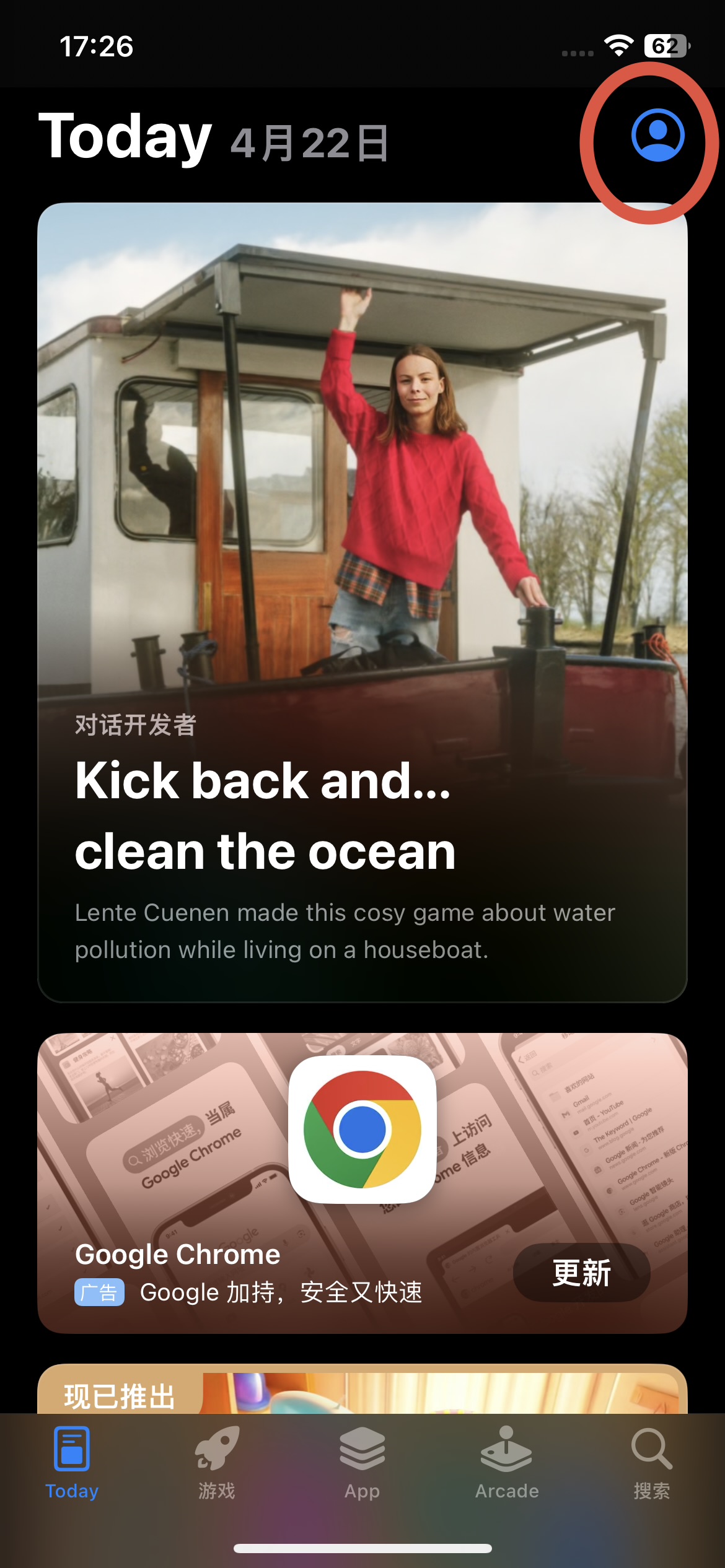
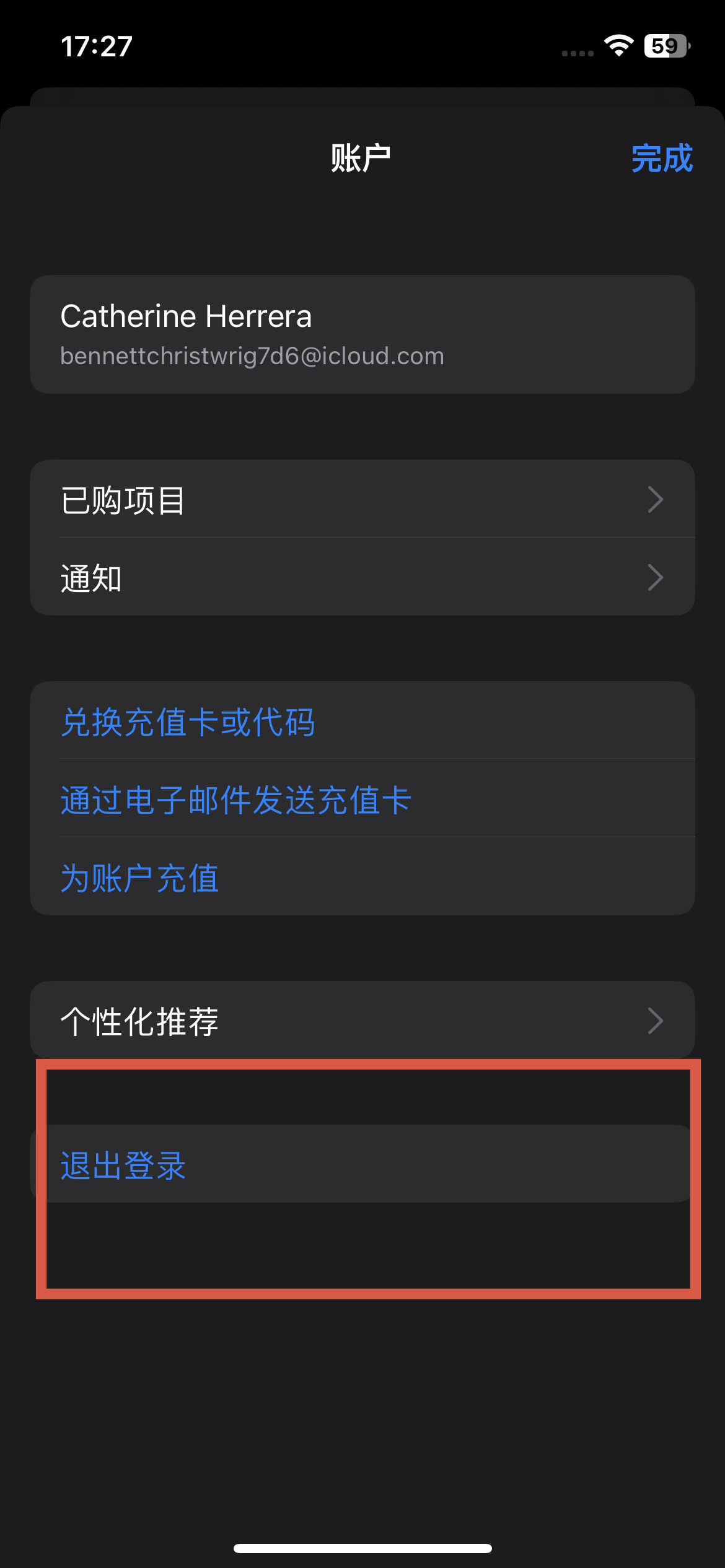
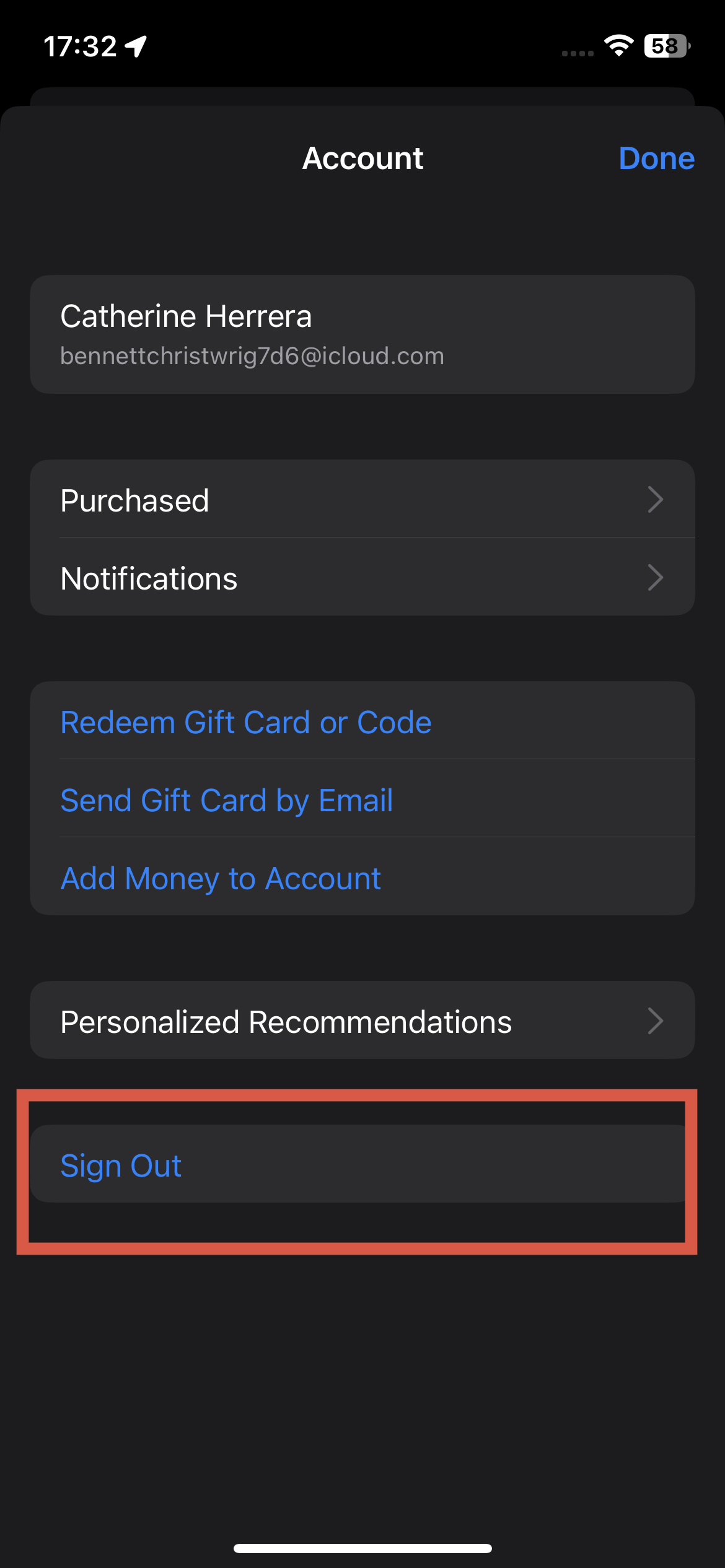
If you are currently logged in with your own Apple ID, scroll to the very bottom and tap Sign Out. Then, tap Sign In With Apple ID at the top.
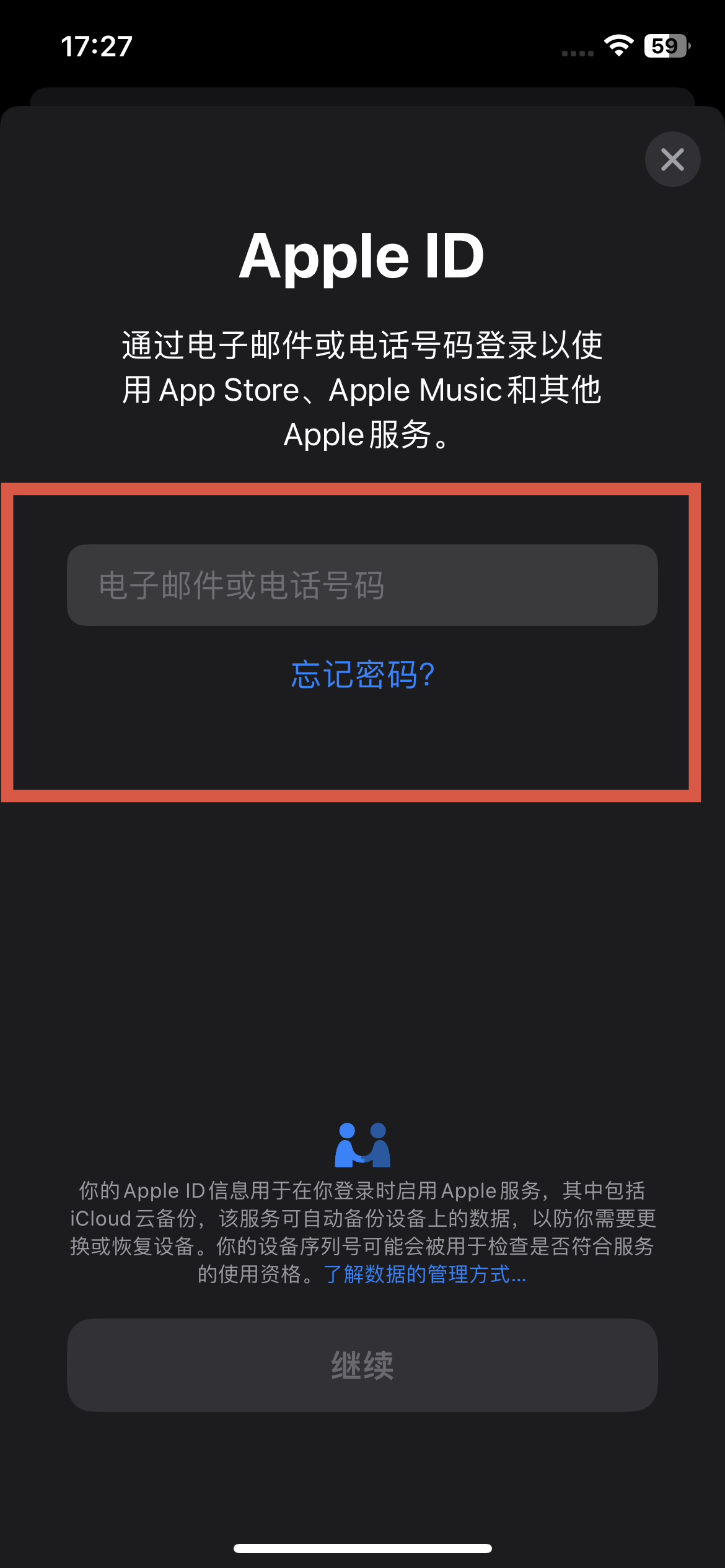
A popup will appear to enter an Apple ID. Select "Not xxxxxx?" if prompted by iOS, and choose to sign in manually.

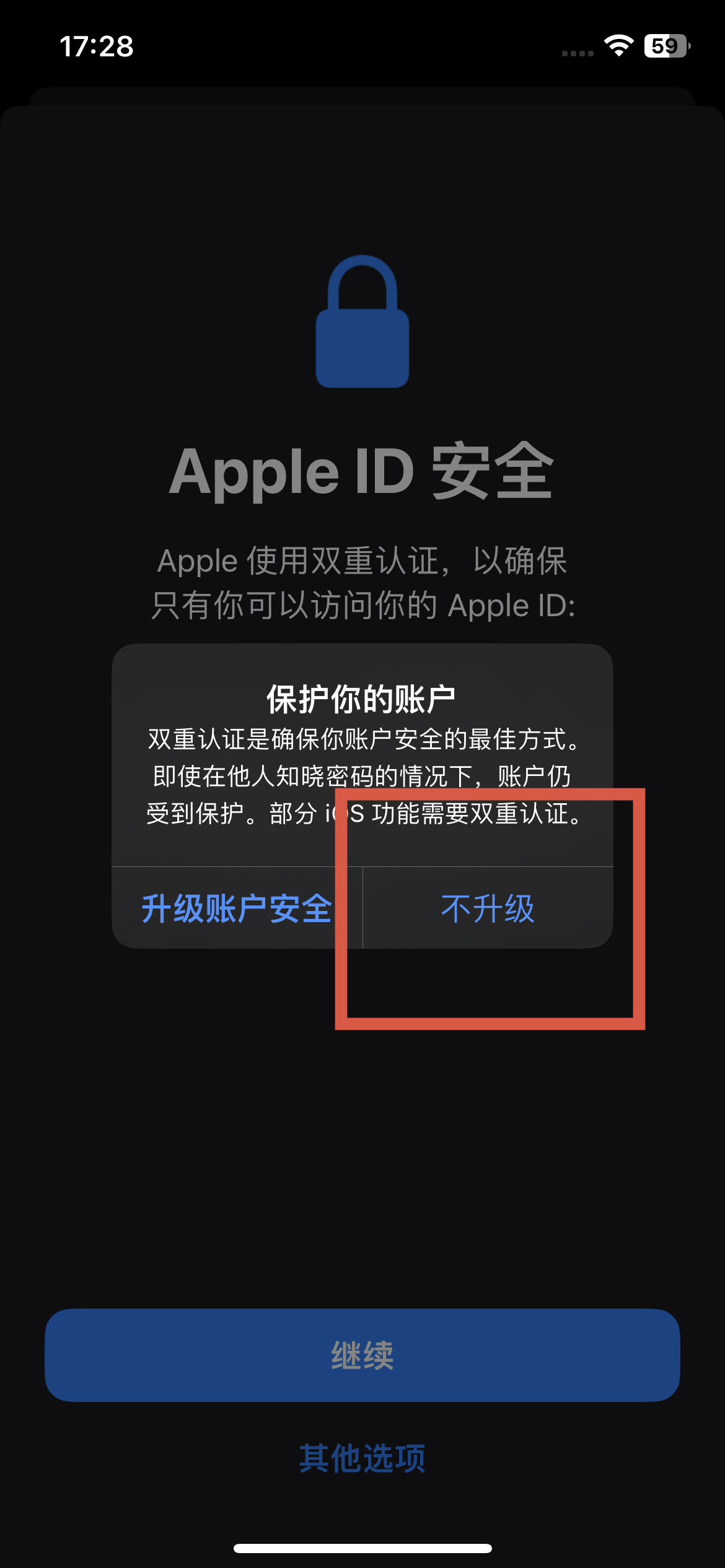
⚠️ VERY IMPORTANT: Apple ID Security Page
When the Apple ID Security page appears, select "Other Options" at the bottom. Do NOT tap "Continue".
Then, select "Do not upgrade".
Choosing the wrong option will restrict the shared account for everyone.

After successfully signing in without upgrading security, tap Done.
Shared Account to Use
Please try one of the following accounts. Use its corresponding security questions if the account is locked.
samuenicholson6g7@icloud.com
tao
doctor
dubai
bennettchristwrig7d6@icloud.com
chen
play
earth
If the password is wrong or requires a verification code, use the security questions provided above to reset the password.
If prompted for a verification code (two-factor authentication or mobile text), and you did not receive it, then select "Didn't receive code" and use the security questions above to bypass/reset.
If login keeps showing no response, try switching between 4G/WiFi, switch mobile networks, close the App Store process from the app switcher, and try again.
Or search manually:
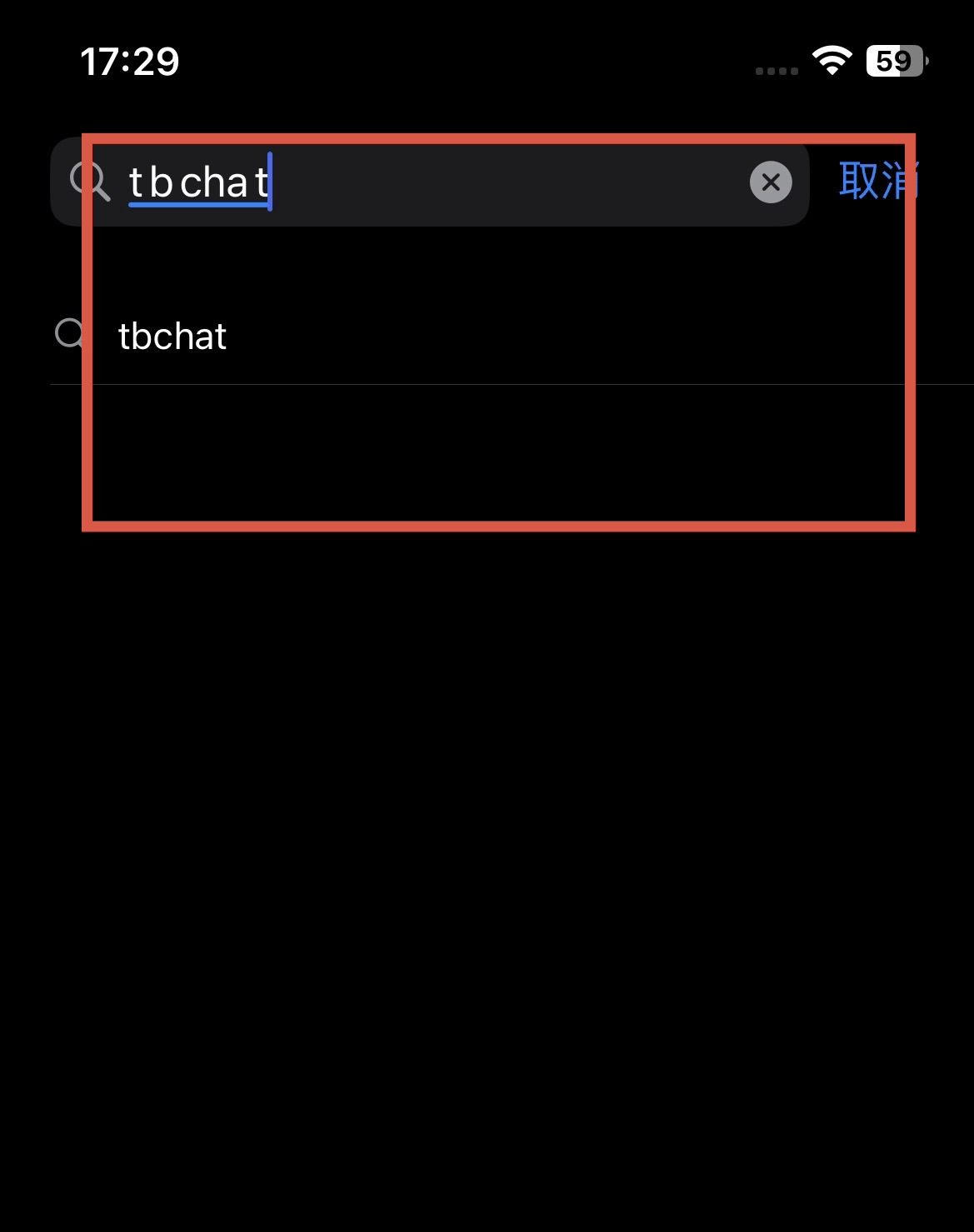
Go to the Search tab at the bottom right corner of the App Store
and search for tbchat.


Look for the correct TBChat app (green icon with a white chat bubble). Tap Get to download and install it.
Once the download is complete, DO NOT leave the shared account logged in.
Go back to the App Store "Today" tab, tap the profile avatar in the top right corner, scroll all the way to the bottom, and tap Sign Out. You can then log back in with your personal Apple ID.